User Guide
AsanagiDB Desktop
An all-in-one graph database, visual explorer, and GraphRAG memory layer for macOS. Everything runs locally on your Mac by default, with no accounts, no cloud dependencies, and zero data telemetry.
Getting Started
AsanagiDB Desktop runs as a native macOS application on Apple Silicon and Intel Macs.
Installation & First Launch
Drag AsanagiDB Desktop.app into your Applications folder and double-click to launch it.
On first launch, AsanagiDB Desktop automatically initializes a default workspace and opens an initial graph database named default. The embedded AsanagiDB database engine starts immediately, ready to receive queries.
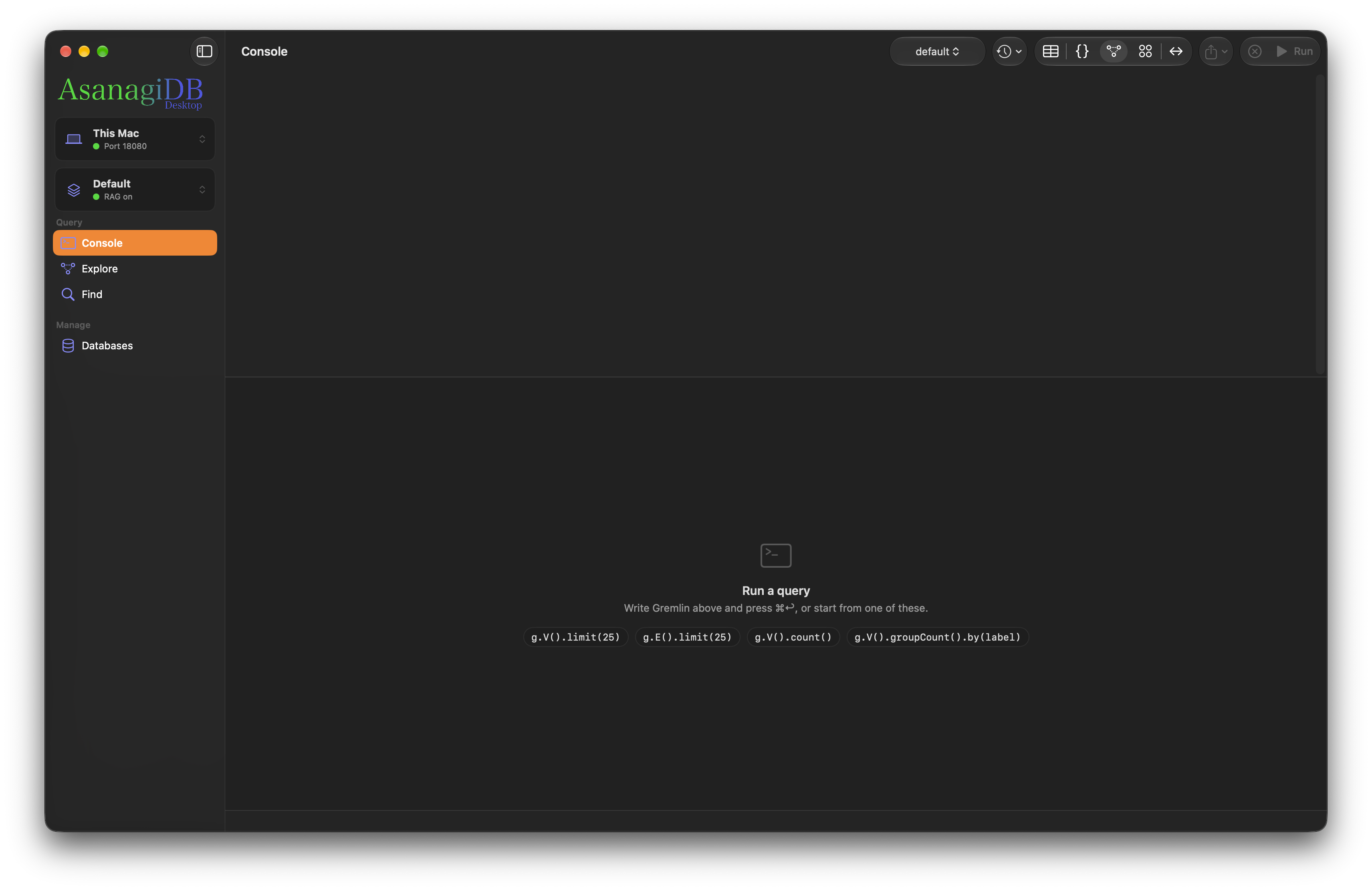
Creating Your First Database
A database holds one graph consisting of vertices, edges, and their key-value properties:
- Click Databases in the left sidebar.
- Click the + button (New Database) in the top toolbar.
- Type a database name (lowercase letters, numbers, and hyphens) and press Return or click Create.
- Your new database appears in the database list and in database pickers throughout the app.
Explore
The Explore section lets you inspect your graph visually without writing any Gremlin queries.
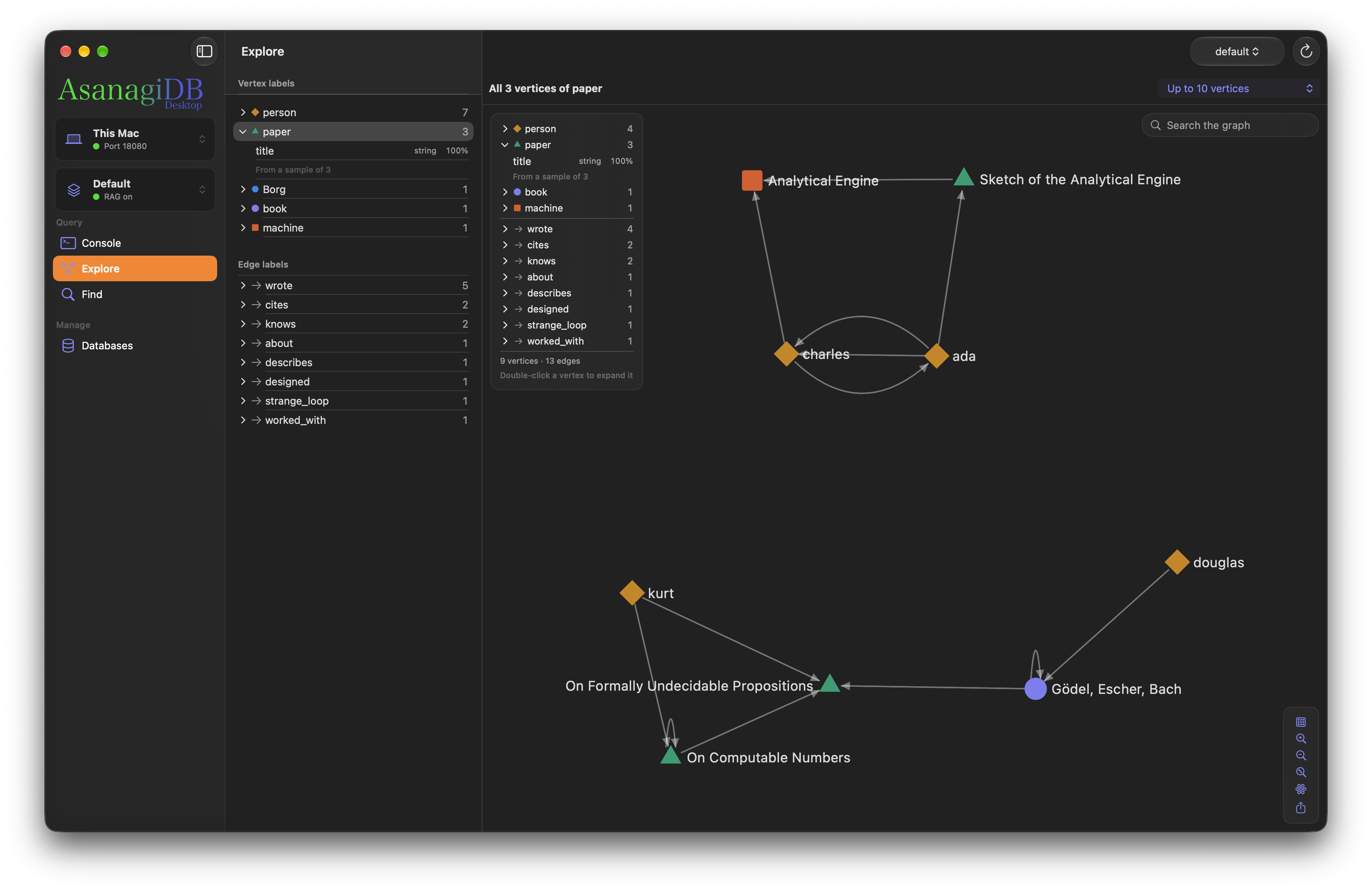
Browsing Labels & Schema
The left panel lists every vertex label and edge label present in the chosen database, along with its current element count:
- Color Swatches: Each vertex label receives an automatic color slot consistent across the Console, Explore, and table views.
- Schema Chevron: Click the small disclosure chevron next to any label to inspect inferred schema properties, data types (e.g. string, int, boolean), sample coverage, and index status.
- Reload: Click the Reload button in the toolbar to recount labels and refresh schema metadata.
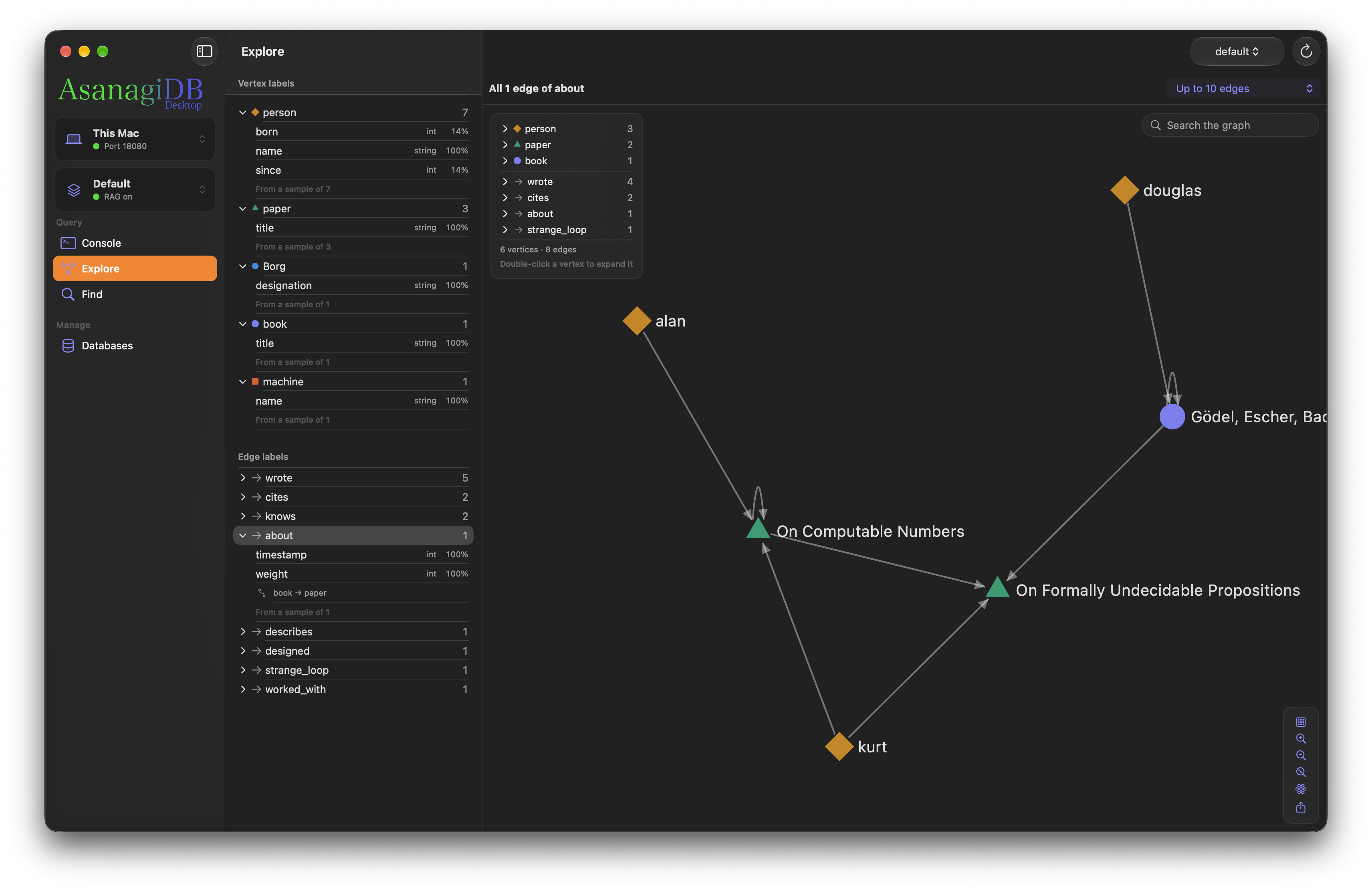
Sampling & Graph Canvas
Select any vertex or edge label from the sidebar list to render a sample graph on the canvas:
- Sample Size: Use the Show picker to choose sample size limits: Up to 10, 30, 50, 100, 300, or 1,000 elements. For samples above 300 nodes, the graph is rendered with a still layout to keep interactions responsive.
- Pan & Zoom: Drag the background to pan across the canvas. Pinch with a trackpad or click the + and - magnifying glass buttons to zoom in and out. Click the Fit button to center the whole graph.
- Move Vertices: Click and drag any vertex to reposition it. Group multiple vertices using ⌘-click, by dragging a marquee box with Shift-drag, or by pressing ⌘A to select all vertices. Grouped vertices move together.
- Expand Neighbors: Double-click any vertex to query and load its immediate neighbors and connecting edges into the current canvas.
- Layout Algorithm: Click the layout menu button (grid icon) in the bottom control panel to switch between Force Directed, Circular, Grid, or Tree layouts. Use the Lay the graph out again button to recalculate node positions.
- Edge Labels: Choose Automatic, Shown, or Hidden in the layout menu to control edge label display.
- Graph Search: Use the Search the graph search field in the top-right of the canvas to highlight matching vertices by name, label, or properties. Press Return to center on the first match.
- Export Image: Click the share button in the control panel to Copy Image, Save as PNG…, or Save as PDF….
Inspector Card & Sidebar
Click any vertex or edge to inspect its label and property dictionary:
- Floating Card vs Sidebar: The inspector appears as a floating card over the canvas. Press ⌘I or click the dock icon to dock the inspector as a right-hand sidebar.
- Document Actions: When you inspect a vertex representing a document section or file, the inspector provides buttons to Open the file in its default macOS app, Reveal in Finder, or select an alternative app with Open With.
Find
The Find section provides a visual query builder. Instead of writing Gremlin traversal code by hand, you construct a visual pattern of connected cards with property conditions. AsanagiDB Desktop translates your visual pattern into optimized Gremlin in real time.
List Mode vs Canvas Mode
Use the segmented picker at the top of the editor to switch between two editing modes:
- List: Displays the pattern as an indented hierarchical tree. Each card represents a vertex, with connection rows showing edge direction and link conditions.
- Canvas: Displays vertex cards on an infinite 2D canvas. Drag cards by their grip header to arrange them. Click Tidy to lay cards out automatically under the vertices they connect to.
Adding Conditions & Matching Rules
Each card represents a vertex in the pattern:
- Label Picker: Select a specific vertex label, or choose Any label to match across all types.
- + Condition: Click the + Condition menu to pick known property keys from the schema or choose Other Property.
- Value Types: Supports Text, Number, or True or False (Boolean).
- Comparison Tests: Text supports is, is not, matches, in, is present, and is missing. Numbers add >, ≥, <, ≤, and between (both ends included).
- Wildcard Matching: With matches, use wildcards like
Eiff*or*contract*. Text with a*ignores case; text without one, like is, matches exactly. - Any of a List: in takes a list separated by commas, and a vertex matches if any entry does, for example
Poly*, Inh*for concepts starting with either. Entries follow the same wildcard rules as matches. Cards connected to the same card must all match, so use in on one card, not two cards, to ask for one thing or another. - Toggle Conditions: Check or uncheck the box next to any condition to include or exclude it from the active search without deleting it.
Connect Suggestions
Click the Connect button on any card to add an adjacent vertex:
- Schema-Informed Suggestions: The Connect menu inspects the database and groups suggestions into Edges from [Label] (outgoing edges) and Edges to [Label] (incoming edges). Choosing a suggestion automatically sets the edge label, direction, and target vertex label.
- Arbitrary Connections: Choose Any Edge, Any Label to create an open-ended relationship.
Running Patterns & Card Badges
The generated Gremlin traversal script is displayed in the bottom preview bar:
- Run: Click Find or press ⌘↩ to execute the query against the selected database.
- Match Badges: In multi-card patterns, result vertices display small numbered badges (1, 2, 3...) indicating which card in your pattern each vertex satisfied.
- Hover Highlighting: Move your mouse pointer over any card in the pattern editor to highlight only the vertices that matched that specific card on the graph, dimming the rest.
- Open in Console: Click Open in Console to transfer the compiled Gremlin query into the Gremlin editor for custom manual refinement.
- Undo Support: Use Edit ▸ Undo (⌘Z) or Edit ▸ Redo (⇧⌘Z) to step through card and condition edits.
- Save & Open Patterns: Use the Pattern menu in the toolbar to New Pattern, Open Pattern…, or Save Pattern… as JSON files.
Documents & GraphRAG
AsanagiDB Desktop connects your local documents to your graph database via GraphRAG. GraphRAG documents and Show Page work through Settings ▸ RAG and the graph's right-click context menus only; there is no separate Documents section in the 1.0 sidebar. Connected AI assistants read your documents, summarize each section, extract concepts, and record cross-document relations into the workspace memory database.
Adding Document Folders
Document indexing is managed through the RAG tab in Settings (⌘,):
- Open Settings (⌘,) and click the RAG tab.
- Ensure Assistants can use my documents in this workspace is enabled.
- Click Add Folder… and choose a directory containing documents on your Mac.
- Choose indexing detail level for each folder:
- Full: Assistants extract document summaries, concepts, questions, and granular structured facts.
- Light: Assistants extract summaries, concepts, and questions, but skip fine-grained facts for faster processing and lower token usage.
Supported document formats include Markdown (.md), plain text (.txt), reStructuredText (.rst), Org mode (.org), AsciiDoc (.adoc), LaTeX (.tex), and PDFs. Note that scanned PDFs without an embedded OCR text layer cannot be parsed for text. Folders are opened strictly read-only; your original files are never altered or moved.
Reading & Re-reading On Demand
Document reading is on demand only. When files in an added folder are created or edited on disk, AsanagiDB Desktop displays the Waiting to be read count under Memory statistics in Settings ▸ RAG. Nothing re-reads automatically in the background. Documents are read only when you ask your assistant to read them (for example, by clicking Copy Prompt for an Assistant in Settings ▸ RAG and pasting the instruction into Claude Code).
Show Page & Show Pages
Every section extracted by GraphRAG stores its exact location within the source document.
- Show Page (PDFs): Right-click any Section vertex in a graph and select Show Page. The dedicated document viewer window (
PlaceWindow) opens directly to the exact page where that section begins, highlighting its first words in yellow. - Show Section (Text documents): For non-PDF documents (Markdown, TXT, etc.), right-clicking a Section vertex and choosing Show Section displays the document text with the section content selected.
- Show Pages (Concepts): Right-click any Concept vertex and select Show Pages. The viewer displays a split sidebar listing every document and section across your entire workspace that mentions that concept. Click any entry to jump directly to that page.
- Open & Reveal: In the Place window header, click Open (or Open in Preview) to open the source document in your default system reader, or click Reveal in Finder to highlight the file in macOS Finder.
- File Change Warning: If a source file was modified on disk after your assistant read it, the viewer displays an orange warning banner indicating that the recorded section boundaries may have shifted.
Console
The Console is an interactive Gremlin query development environment for running graph traversals against local or remote databases.
Editing & Running Queries
- Multi-Statement Execution: The Gremlin editor supports multiple statements separated by semicolons (
;) or blank lines. The console executes statements sequentially, reporting individual execution status for each. - Run Full Script or Selection: Press ⌘↩ or click Run in the toolbar to execute the script. If text is highlighted, the button becomes Run Selection and executes only the selected code.
- Clear Results: Press ⌘K or click Clear (circle with an X) to clear current result outputs while preserving your query text in the editor.
- Query History: Click the History button (clock icon) in the toolbar to view and recall recent queries.
- Database Picker: Choose which database in the current workspace or remote server the query will execute against.
Result Views & Export
Use the Show picker in the toolbar to toggle between result representations:
- Table: Tabular view displaying formatted property columns for returned vertices, edges, or scalar values.
- JSON: Pretty-printed raw JSON output returned by the AsanagiDB engine.
- Graph: Visual node-link diagram rendering vertices and edges returned by the traversal. Supports zooming, dragging, double-click expansion, and layout adjustments identical to the Explore graph canvas.
- Vertices: Tabular view isolating only the vertices present in the query outcome.
- Edges: Tabular view isolating only the edges present in the query outcome.
Click the Export button (square with arrow) in the toolbar to export query outcomes:
- Save JSON…: Exports pretty-printed JSON output to disk.
- Save Table as CSV…: Exports the current result table as comma-separated values.
- Save Vertices as CSV…: Exports all vertices in the result as a CSV table.
- Save Edges as CSV…: Exports all edges in the result as a CSV table.
- Export Graph Image: To save the graph visually, use the export button in the bottom control panel of the graph canvas (Copy Image, Save as PNG…, or Save as PDF…).
Databases
The Databases section manages all graph databases stored within the active workspace.
Metrics & Brain Badge
Selecting a database reveals summary metric tiles:
- Vertices: Total count of vertices in the database.
- Edges: Total count of directed edges in the database.
- Indexes: Total number of active property lookup indexes.
- Brain Badge: When RAG is enabled in the workspace, the designated memory database is badged with an accent capsule labeled Brain. The Brain card displays additional statistics: memory nodes, indexed documents, and extracted concepts.
Import, Export & Rename
The Import and export card provides data transfer tools for databases on this Mac:
- Export…: Dumps all vertices and edges in the database to a standard NDJSON (Newline Delimited JSON) file.
- Import…: Ingests an NDJSON export file. Import always adds: every vertex in the file becomes a new vertex with a new ID, and edges are reconnected only among the vertices from that same file. Nothing is matched, merged, or deduplicated against what is already in the database, so importing the same file twice gives two copies. Import into an empty database when you want an exact copy of a graph.
- Rename…: Clones the database under the new name, validates data integrity, and removes the old database. A safeguard copy of the original database is automatically archived in the workspace
backups/folder. Connected assistants are automatically reconnected to the new name.
Property Indexes
Indexes accelerate property-based lookups during traversals and visual Find searches.
- To create an index, choose whether the index applies to a vertex or edge, enter the optional label filter, specify the property key, and click Add Index.
- Click the trash button next to any existing index entry to delete it.
Deleting a Database
To delete a database, scroll to the Danger zone card and click Delete Database…. You must type the exact name of the database to confirm deletion. On this Mac, an automatic backup copy is stored in the workspace backups/ directory prior to deletion.
Workspaces
A workspace is a dedicated folder on your Mac holding databases, backup files, configuration settings, and an optional GraphRAG memory brain. Workspaces keep separate projects completely isolated.
Workspace Architecture on Disk
Each workspace folder on your Mac contains:
workspace.json: Workspace manifest storing the workspace name, RAG toggle state, designated memory database, data source permissions, and folder bookmark references.data/: The LMDB environment containing all database files for this workspace.backups/: Automatic timestamped safeguard copies created before database deletions or renames.
Important: Workspace folders should be stored on local drives. Folders synchronized by iCloud Drive, Dropbox, or network mounts should be avoided to prevent database locking conflicts.
Creating & Managing Workspaces
- New Workspace: Click the WorkspaceCard in the sidebar, select New Workspace…, enter a name, click Choose… to pick a parent folder, toggle whether RAG is enabled, and press Return or click Create.
- Open Workspace: Select Open Workspace… to select an existing workspace folder or adopt an existing database directory.
- Manage Workspaces: Select Manage Workspaces… to rename workspaces, reveal their folders in macOS Finder, or remove old entries from your workspace menu without deleting underlying files.
Remote Connections
In addition to managing the local database engine, AsanagiDB Desktop can connect directly to standalone AsanagiDB servers running across your local network or in cloud environments.
Adding a Remote Server
- Click the ConnectionCard at the top of the sidebar.
- Click Manage Connections…, then click Add Connection….
- Enter a descriptive Name, the server's Host (IP address or hostname), and the Port (default:
8080). - If the remote server enforces authentication, enter the User, Password, and the User's database. Passwords are saved securely in your macOS Keychain.
- Click Test to verify network reachability and authentication.
- Press Return or click Save.
Remote Mode Behavior
When connected to a remote server:
- A banner at the top of the main detail view indicates that you are working on a remote target.
- The Console, Explore, and Databases views execute their operations directly against the remote engine.
- Because NDJSON file export/import reads and writes files directly on the server host machine, file transfer actions are restricted to This Mac.
- Remote connections are plain TCP and are not encrypted: passwords and query data cross the network in clear text. Use a trusted network.
- Your local workspace's GraphRAG memory remains active and accessible on your Mac while you query remote clusters.
Local Server & Status Menu
AsanagiDB Desktop includes an embedded Gremlin WebSocket server, allowing external tools, scripts, and CLI utilities to query the local engine directly.
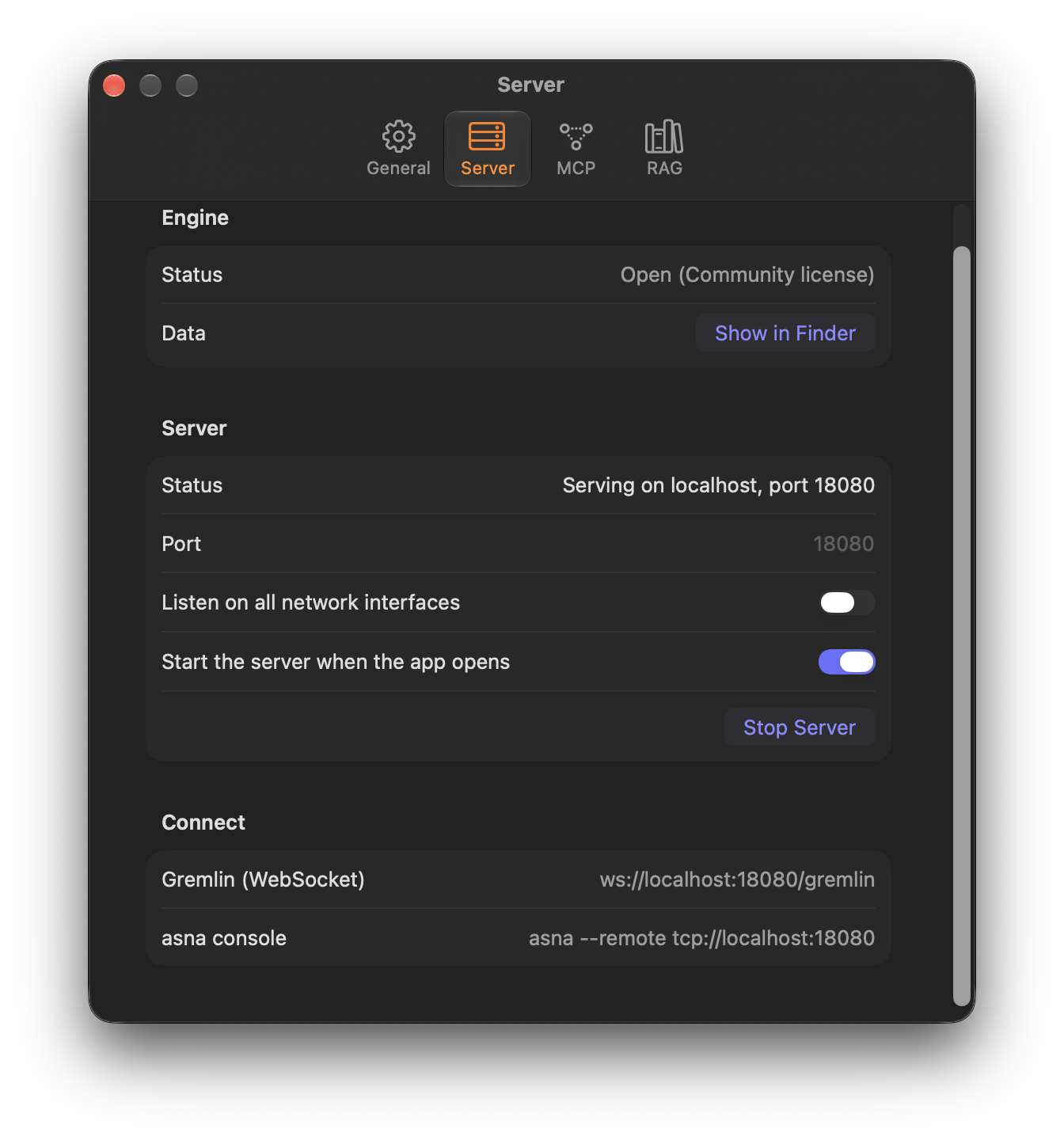
Server Configuration
Manage the local server in Settings (⌘,) under the Server tab:
- Start Server / Stop Server: Start or stop the server manually.
- Start the server when the app opens: Toggle to automatically launch the server whenever AsanagiDB Desktop opens.
- Connection Endpoints:
- Gremlin WebSocket:
ws://localhost:8080/gremlin - CLI Console command:
asna --remote tcp://localhost:8080
- Gremlin WebSocket:
Menu Bar Extra (Status Menu)
AsanagiDB Desktop runs an icon in your macOS menu bar (cylinder icon). Clicking the icon opens a fast status menu:
- Displays the current server status and port summary.
- Start Server / Stop Server: Toggle the engine server without bringing the main window forward.
- Settings…: Opens the application Settings window.
- Open AsanagiDB Desktop: Activates and focuses the main application window.
- Quit AsanagiDB Desktop (⌘Q): Gracefully flushes all databases, stops active servers, and quits the application.
Settings
Access application settings anytime via AsanagiDB Desktop ▸ Settings… or by pressing ⌘,. Settings are divided into four tabs:
General Tab
- Appearance: Choose between Match System, Light, or Dark mode.
- Workspace: Displays the active workspace name, file system path, and a Show in Finder button.
Server Tab
Controls the local Gremlin WebSocket server and external connection strings, as described in the Local Server section.
MCP Tab
Configures the embedded Model Context Protocol (MCP) server for AI assistants like Claude Code. Detailed below in the AI Assistant & MCP section.
RAG Tab
Configures GraphRAG memory, document folders, and assistant read permissions for the active workspace:
- Assistants can use my documents in this workspace: Master switch for RAG capabilities in this workspace.
- Memory database: Select which database acts as the workspace Brain.
- Data sources (read-only): Select other databases in the workspace that connected assistants are permitted to query. The engine automatically enforces read-only access for data sources, preventing assistants from modifying existing data.
- Document folders: Add, configure (Full vs Light), or remove folders scanned for document GraphRAG.
- Memory Statistics: Live counts of Memory nodes, Read documents, Pending files waiting to be read, Sections, Concepts, and Relations.
- Copy Prompt for an Assistant: Copies an ingest instruction prompt to your clipboard ready to paste into Claude Code or other assistants.
- Reset Knowledge…: Erases extracted document knowledge (documents, sections, concepts) while preserving all agent memory nodes. A backup is saved in the workspace
backups/folder prior to reset.
AI Assistant & MCP
AsanagiDB Desktop embeds an in-process MCP (Model Context Protocol) server running on 127.0.0.1. This allows AI assistants like Claude Code to store long-term memories, query project knowledge graphs, and ingest documents.
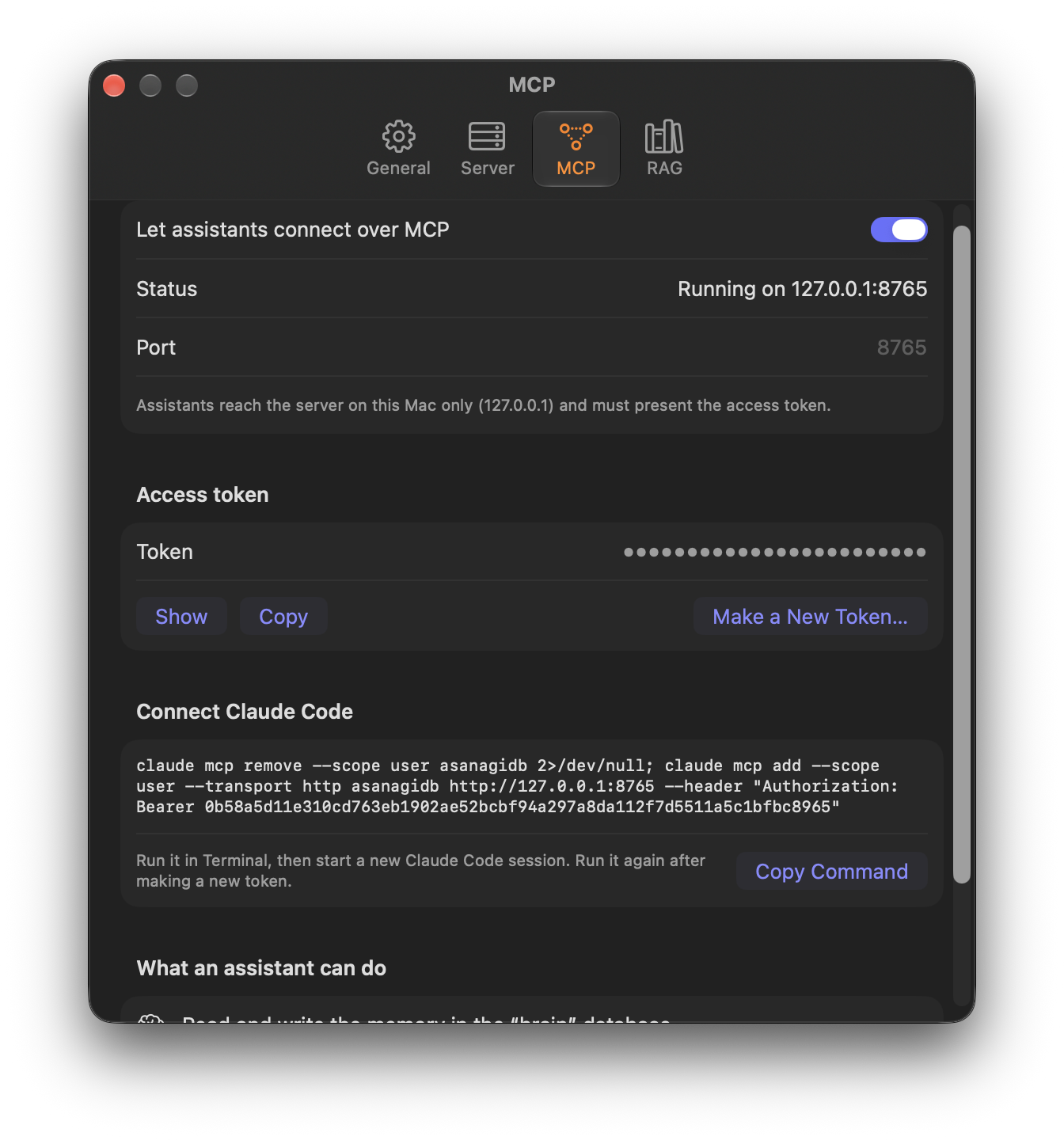
Connecting Claude Code
- Open Settings (⌘,) and navigate to the MCP tab.
- Turn on Let assistants connect over MCP.
- Click Copy Command under Connect Claude Code.
- Paste and run the command in your macOS Terminal:
The command Copy Command gives you already contains your token and your assistant port (claude mcp remove --scope user asanagidb 2>/dev/null; claude mcp add --scope user --transport http asanagidb http://127.0.0.1:8765 --header "Authorization: Bearer <YOUR_TOKEN>"8765by default). It first removes any earlierasanagidbentry, so running it again after making a new token or changing the port replaces the old connection. - Start a new session of Claude Code. It will automatically discover the memory and GraphRAG tools.
Teach Your Assistant to Use Its Memory
Connecting is only half of it. To make your assistant check its memory at the start of every session, save what it learns as it goes, and follow the standing rules you give it, add a short instruction file. We publish a ready-made CLAUDE.md for Claude Code, plus equivalents for Gemini, Cursor, and other assistants, on the AsanagiDB site: Memory directives (CLAUDE.md). Copy it into ~/.claude/CLAUDE.md to apply it to every project, or into a project's root folder to scope it to that project.
Security & Sandboxing
- Localhost Only: The MCP server binds exclusively to the loopback interface (
127.0.0.1), unreachable from external network interfaces. - Access Token: Every MCP request must supply the bearer access token generated by the app. Click Make a New Token… at any time to invalidate old tokens and disconnect previous clients.
- Scope Guard: Connected assistants have write access only to the designated memory database in the workspace. All other listed data source databases are strictly read-only. Unlisted databases cannot be read or seen by assistants.
Troubleshooting & FAQ
For general questions, license information, and architecture overviews, visit the Frequently Asked Questions on the home page.
Common Technical Scenarios
- Port Already In Use: If port 8080 is taken by another process on your Mac, open Settings ▸ Server to change the Gremlin server port, or Settings ▸ MCP to change the assistant port.
- Unreadable Scanned PDFs: GraphRAG extracts text from digital PDF streams. Scanned PDFs without an OCR text layer contain image bitmaps rather than readable text and cannot be indexed. Run an OCR utility or preview reader before indexing.
- Remote Server Password Warning: When connecting to remote servers, AsanagiDB connects over direct TCP. The app displays an unencrypted network warning because data and credentials travel in clear text across the wire. Connect only over trusted local networks.
- Database In Use / Stale Locks: AsanagiDB uses LMDB for storage engine operations. If the app or an external process terminates unexpectedly, lock files are cleaned up automatically on the next launch. Do not open the same workspace data folder simultaneously from multiple running instances.
- Resetting Knowledge vs Deleting the Brain: If your document collection has changed substantially, use Reset Knowledge… in Settings ▸ RAG rather than deleting the database. Resetting wipes out document summaries, sections, and concepts while preserving all memories that assistants recorded.