Give them all a brain
An AI assistant forgets everything when its session ends. AsanagiDB Desktop gives it a memory that lasts: a graph of what it has learned and what it has read, kept on your Mac. Connect Claude Code today and another assistant tomorrow, and they share the same brain.

Query in Gremlin
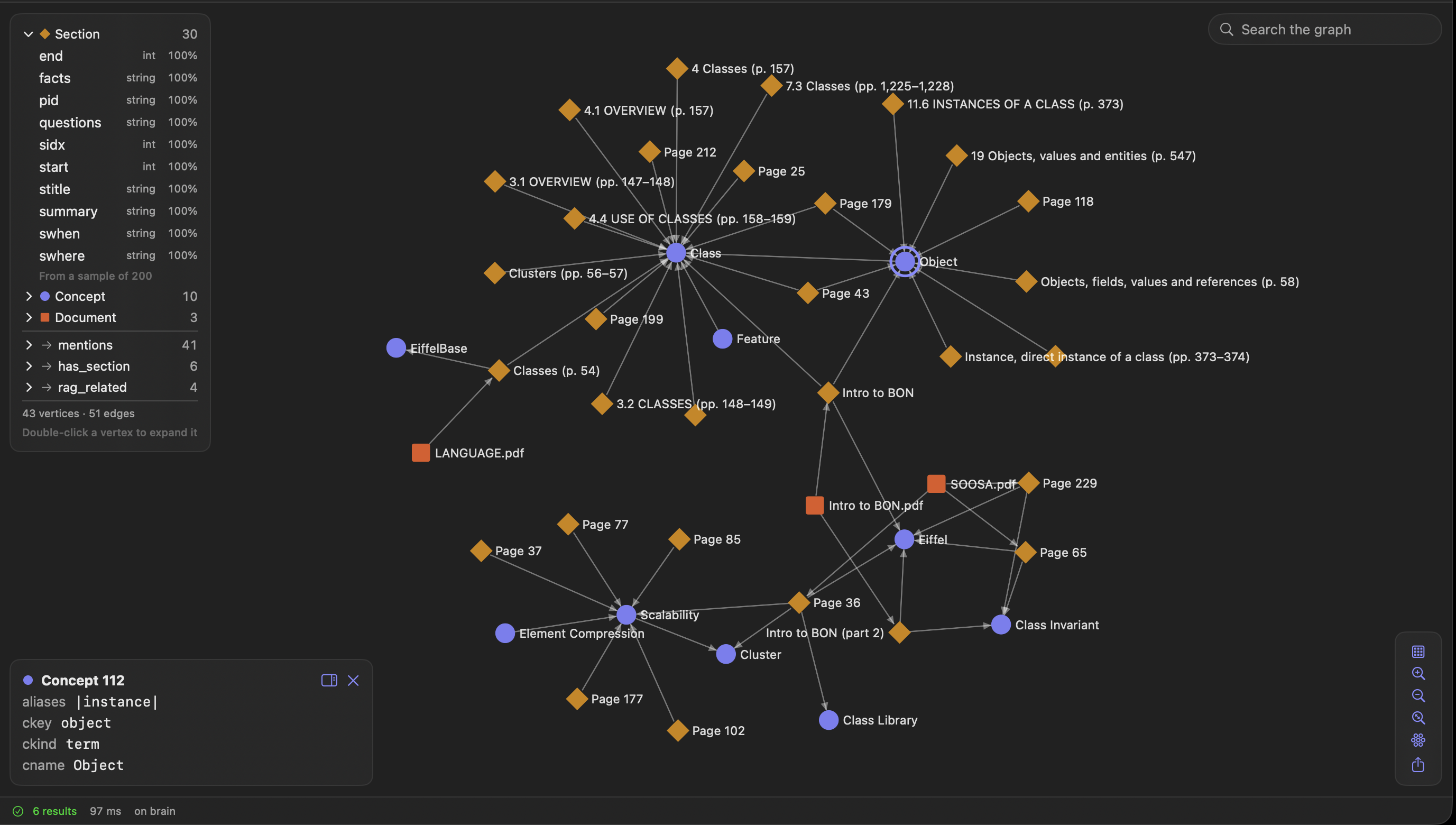
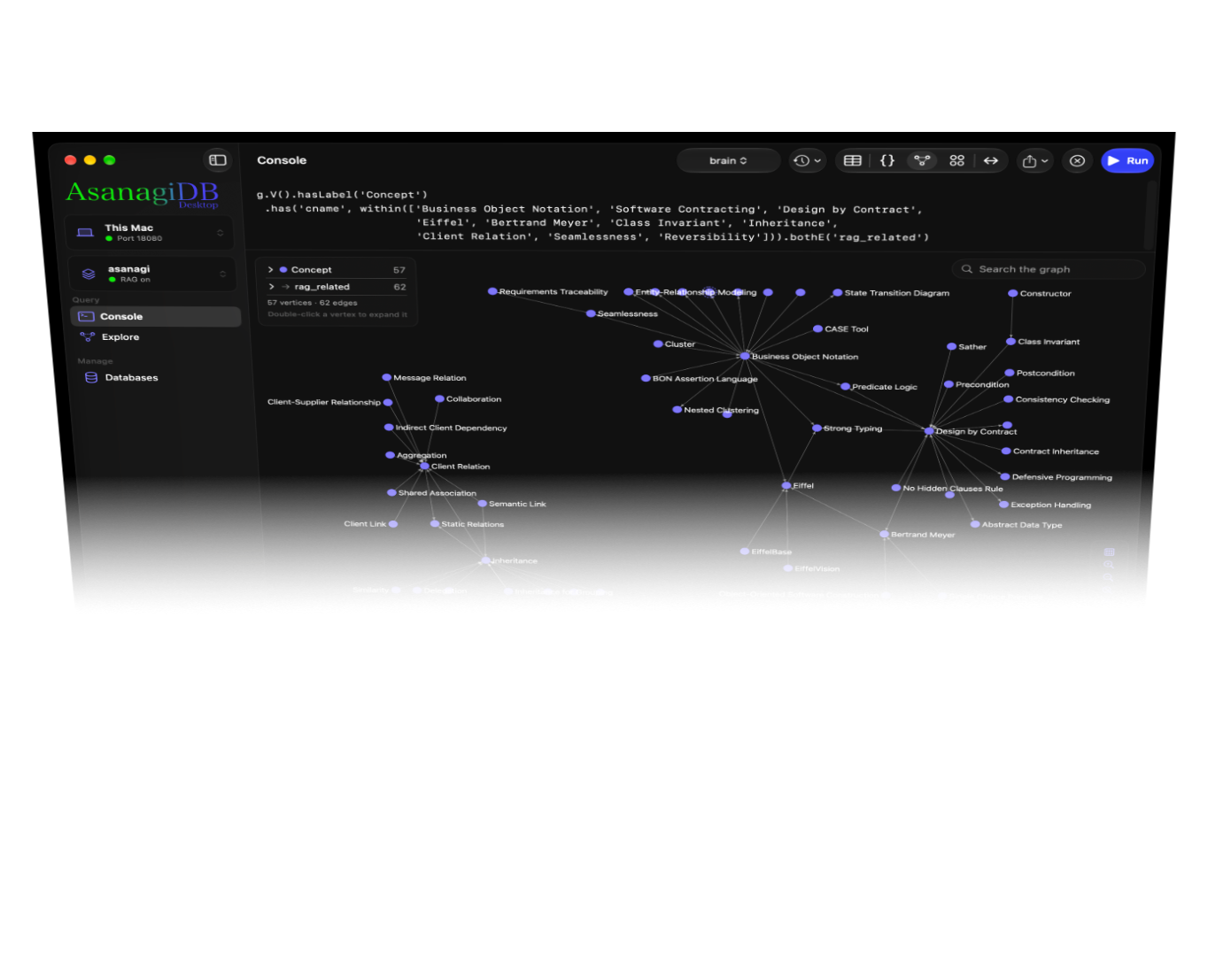
See every result as a graph, a table or JSON
MCP
Turn on MCP, copy one command into Terminal, and Claude Code connects to AsanagiDB Desktop. What it learns goes into a memory database in your workspace, and it is still there next session.
Document RAG
Add a folder and your assistant reads the Markdown, text and PDF files in it, recording a summary of each section, its concepts and the questions it answers. A long PDF is split by its chapters and can be read over several sessions.
True GraphRAG
Most RAG tools cut documents into chunks and fetch the ones whose embeddings sit closest to your question. AsanagiDB Desktop builds a graph instead. Each document is split into its sections, each section is linked to the concepts it covers, and concepts are linked to each other and to what your assistant remembers. A search starts at the concepts in your question and follows those links to the sections that discuss them. Then your assistant reads the exact text.
Your files, your tools
Every document in the graph is a real file on your disk. Right-click it and open it in the app you already use. No vault, no special format, nothing to export.
Show Page
Every section remembers where it is in its document. Right-click a section and choose Show Page, and the PDF opens at the page where the section starts, its first words highlighted. Right-click a concept and choose Show Pages to go through every section that mentions it, across all your documents.
Explore
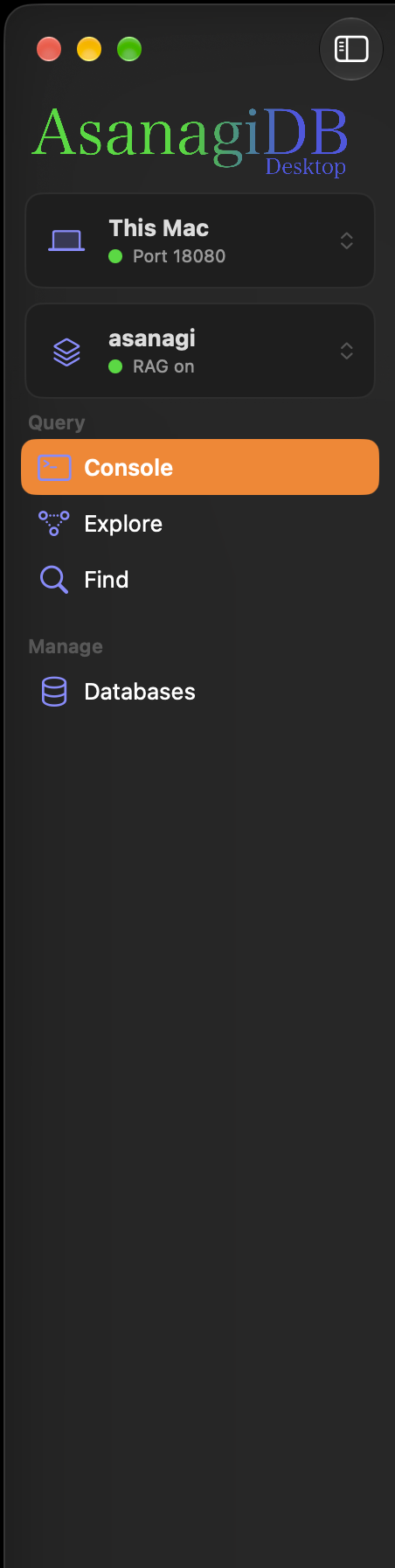
See every vertex and edge label with its count. Pick one to draw a sample as a graph, open a label to see its properties, and double-click a vertex to expand it.
Find
Describe a pattern instead of writing a query. Each card is a vertex with the label and property values it should have, and cards connect through the edges between them. AsanagiDB Desktop turns the pattern into Gremlin as you build it and shows every match as a graph, each vertex marked with the card it matched.
Console
Write Gremlin and see the result as a table, as JSON, or as a graph you can explore. The Console works the same on this Mac and on a server.
Local or remote
The AsanagiDB engine runs inside the app, and other tools can connect to it like a local server. Point the sidebar at an AsanagiDB server and the Console, Explore and Databases work the same way.
FAQ
Yes. There is no account to create, no subscription and no in-app purchase.
A Mac with macOS 26 or later.
No. Your databases, documents and memory stay in your workspace folder, and the app collects no data. It connects only to servers you add yourself. When you connect an AI assistant, what the assistant reads is sent to it and handled under that assistant's own privacy terms.
Claude Code connects with one command, copied from Settings. Other MCP clients connect the same way, over HTTP on this Mac with the access token.
Markdown, plain text, reStructuredText, Org, AsciiDoc, LaTeX and PDF files in the folders you add. A scanned PDF has no text to read.
No. Folders are only read. The memory keeps summaries, concepts, questions and where each section is, not the text.
Gremlin. Each statement in a script gets its own result, shown as a graph, a table or JSON.
No. Explore shows every label and draws a sample of it, and Find lets you draw the pattern you're looking for as cards. The Console is there when you want to write Gremlin yourself.
Yes. Add the server in the sidebar; the password is kept in your Keychain. The connection isn't encrypted, so use it on a network you trust or through an SSH tunnel. The app warns you for any host other than this Mac.
It is the AsanagiDB engine with a Mac app around it, running on the Community license. If you have activated an AsanagiDB license on this Mac, the app uses that license instead.